Improving my HHKB experience in MacOS
A little bit of context
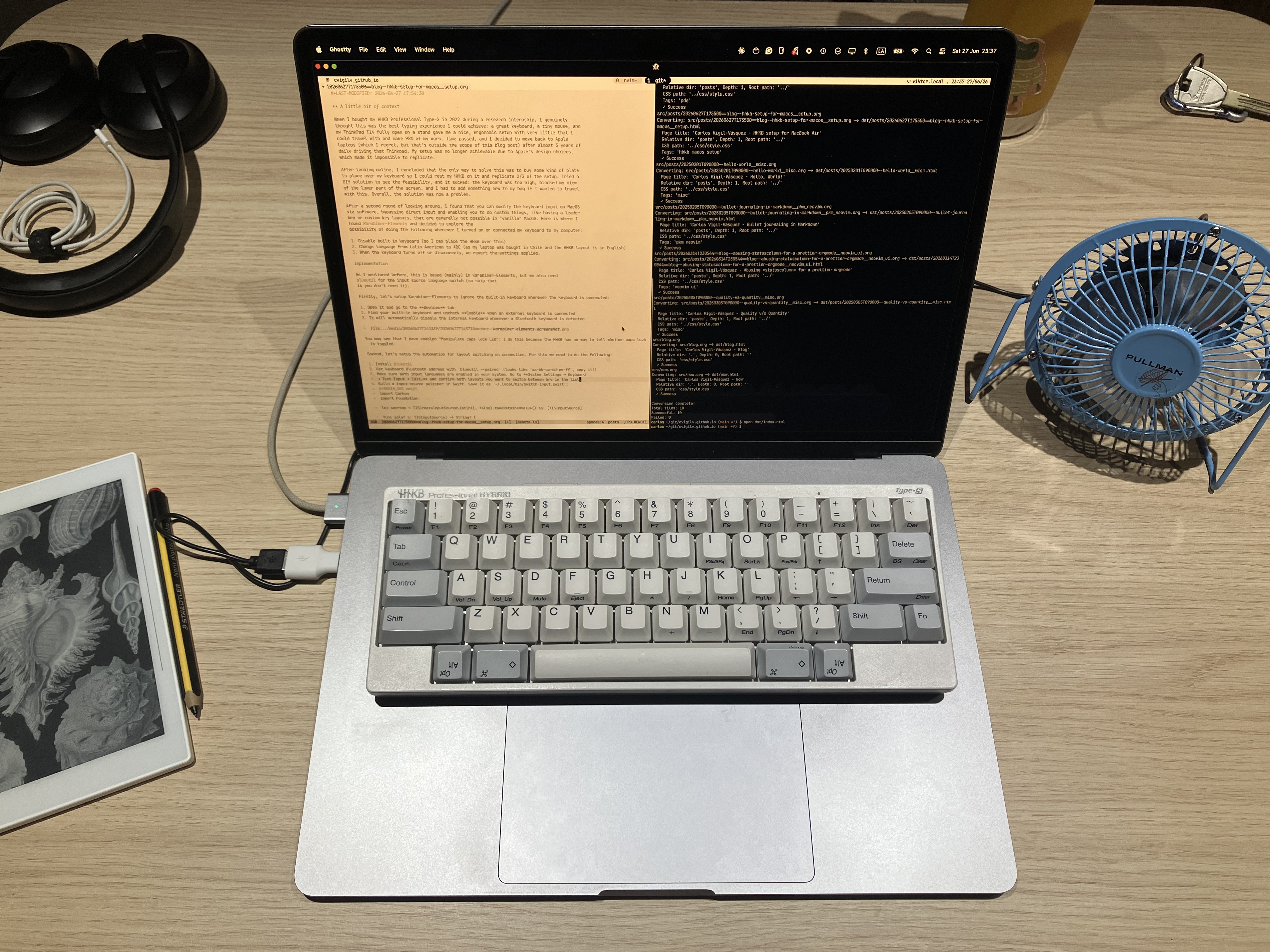
When I bought my HHKB Professional Type-S in 2022 during a research internship, I genuinely thought this was the best typing experience I could achieve: a great keyboard, a tiny mouse, and my ThinkPad T14 fully open on a stand gave me a nice, ergonomic setup with very little that I could travel with and make 95% of my work. Time passed, and I decided to move back to Apple laptops (which I regret, but that's outside the scope of this blog post) after almost 5 years of daily driving that Thinkpad. My setup was no longer achievable due to Apple's design choices, which made it impossible to replicate.
After looking online, I concluded that the only way to solve this was to buy some kind of plate to place over my keyboard so I could rest my HHKB on it and replicate 2/3 of the setup. Tried a DIY solution to see the feasibility, and it sucked: the keyboard was too high, blocked my view of the lower part of the screen, and I had to add something new to my bag if I wanted to travel with this. Overall, the solution was now a problem.
After a second round of looking around, I found that you can modify the keyboard input on MacOS via software, bypassing direct input and enabling you to do custom things, like having a leader key or custom key layouts, that are generally not possible in "vanilla" MacOS. Here is where I found Karabiner-Elements and decided to explore the possibility of doing the following whenever I turned on or connected my keyboard to my computer:
- Disable built-in keyboard (so I can place the HHKB over this)
- Change language from Latin American to ABC (as my laptop was bought in Chile and the HHKB layout is in English)
- When the keyboard turns off or disconnects, we revert the settings applied.
Implementation
As I mentioned before, this is based (mainly) in Karabiner-Elements, but we also need blueutil for the input source language switch (so skip that is you don't need it).
Firstly, let's setup Karabiner-Elements to ignore the built-in keyboard whenever the keyboard is connected:
Open it and go to the Devices tab
Find your built-in keyboard and uncheck Enable when an external keyboard is connected
It will automatically disable the internal keyboard whenever a Bluetooth keyboard is detected
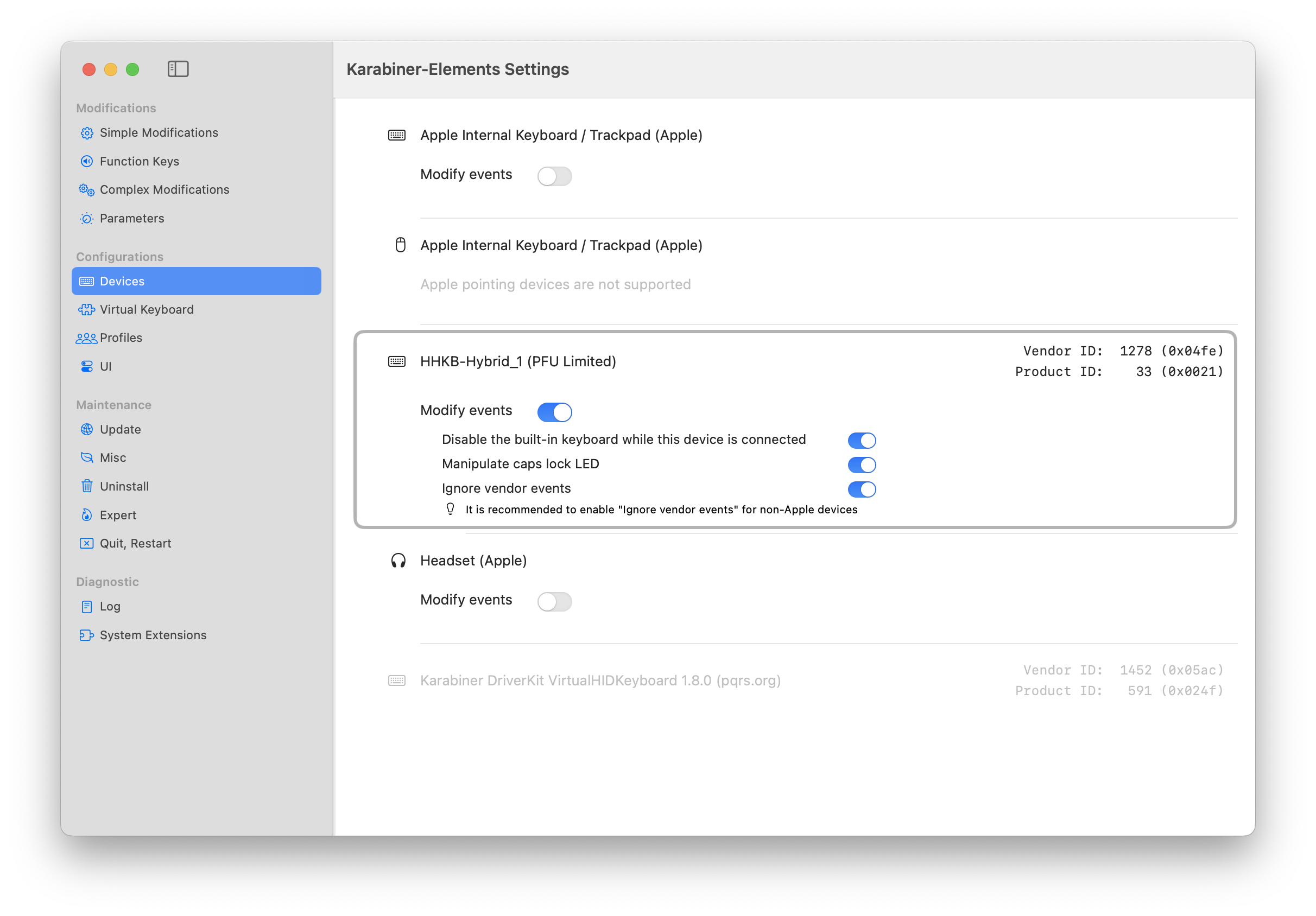
You may see that I have enabled "Manipulate caps lock LED": I do this because the HHKB has no way to tell whether caps lock is toggled.
Second, let's setup the automation for layout switching on connection. For this we need to do the following:
Install blueutil
Get keyboard Bluetooth address with
blueutil --paired(looks likeaa-bb-cc-dd-ee-ff, copy it!)Make sure both input languages are enabled in your system. Go to System Settings → Keyboard → Text Input → Edit… and confirm both layouts you want to switch between are in the list.
Build a input-source switcher in Swift. Save it as
~/.local/bin/switch-input.swift:import Carbon import Foundation let sources = TISCreateInputSourceList(nil, false).takeRetainedValue() as! [TISInputSource] func id(of s: TISInputSource) -> String? { guard let p = TISGetInputSourceProperty(s, kTISPropertyInputSourceID) else { return nil } return Unmanaged<CFString>.fromOpaque(p).takeUnretainedValue() as String } // List available input source IDs if no arguments are passed guard CommandLine.arguments.count > 1 else { for s in sources { if let i = id(of: s) { print(i) } } exit(0) } let target = CommandLine.arguments[1] for s in sources where id(of: s) == target { TISSelectInputSource(s) exit(0) } FileHandle.standardError.write("Not found: \(target)\n".data(using: .utf8)!) exit(1)Compile it with
swiftc -o ~/.local/bin/switch-input ~/.local/bin/switch-input.swift -framework Carbon, and then run it to list your available input source IDs withswitch-input.You'll get values like
com.apple.keylayout.US,com.apple.keylayout.French,com.apple.inputmethod.SCIM.ITABC, etc. Pick the one for "connected" and the one for "disconnected."Create the watcher script. Save as
~/bin/kb-lang-watch.sh. Edit the four variables at the top with your values:#!/bin/bash KB_ADDR="aa-bb-cc-dd-ee-ff" # from Step 2 LANG_CONNECTED="com.apple.keylayout.ABC" # from Step 4 LANG_DISCONNECTED="com.apple.keylayout.LatinAmerican" # from Step 4 BLUEUTIL="/opt/homebrew/bin/blueutil" # Change with path returned by =which blueutil= SWITCH="$HOME/.local/bin/switch-input" STATE_FILE="$HOME/.kb-lang-state" connected=$("$BLUEUTIL" --is-connected "$KB_ADDR") last=$(cat "$STATE_FILE" 2>/dev/null || echo "") if [ "$connected" != "$last" ]; then if [ "$connected" = "1" ]; then "$SWITCH" "$LANG_CONNECTED" else "$SWITCH" "$LANG_DISCONNECTED" fi echo "$connected" > "$STATE_FILE" fiMake it executable:
chmod +x ~/bin/kb-lang-watch.shSetup for
launchdfor watcher. Write the following to~/Library/LaunchAgents/com.user.kblangswitch.plistand replaceUSERNAMEwith your short username (runwhoamiif unsure):<?xml version="1.0" encoding="UTF-8"?> <!DOCTYPE plist PUBLIC "-//Apple//DTD PLIST 0.0//EN" "http://www.apple.com/DTDs/PropertyList-1.0.dtd"> <plist version="1.0"> <dict> <key>Label</key> <string>com.user.kblangswitch</string> <key>ProgramArguments</key> <array> <string>/Users/USERNAME/bin/kb-lang-watch.sh</string> </array> <key>StartInterval</key> <integer>2</integer> <key>RunAtLoad</key> <true/> </dict> </plist>Load it:
launchctl bootstrap gui/$(id -u) ~/Library/LaunchAgents/com.user.kblangswitch.plist
Now you should test by connecting/disconnecting your keyboard and checking if the language switches on those events. This is not instant; it takes anywhere from 1 to 10 seconds, so be patient the first time you test it.